1.4. How to add a new invoice?
Follow these steps:
-
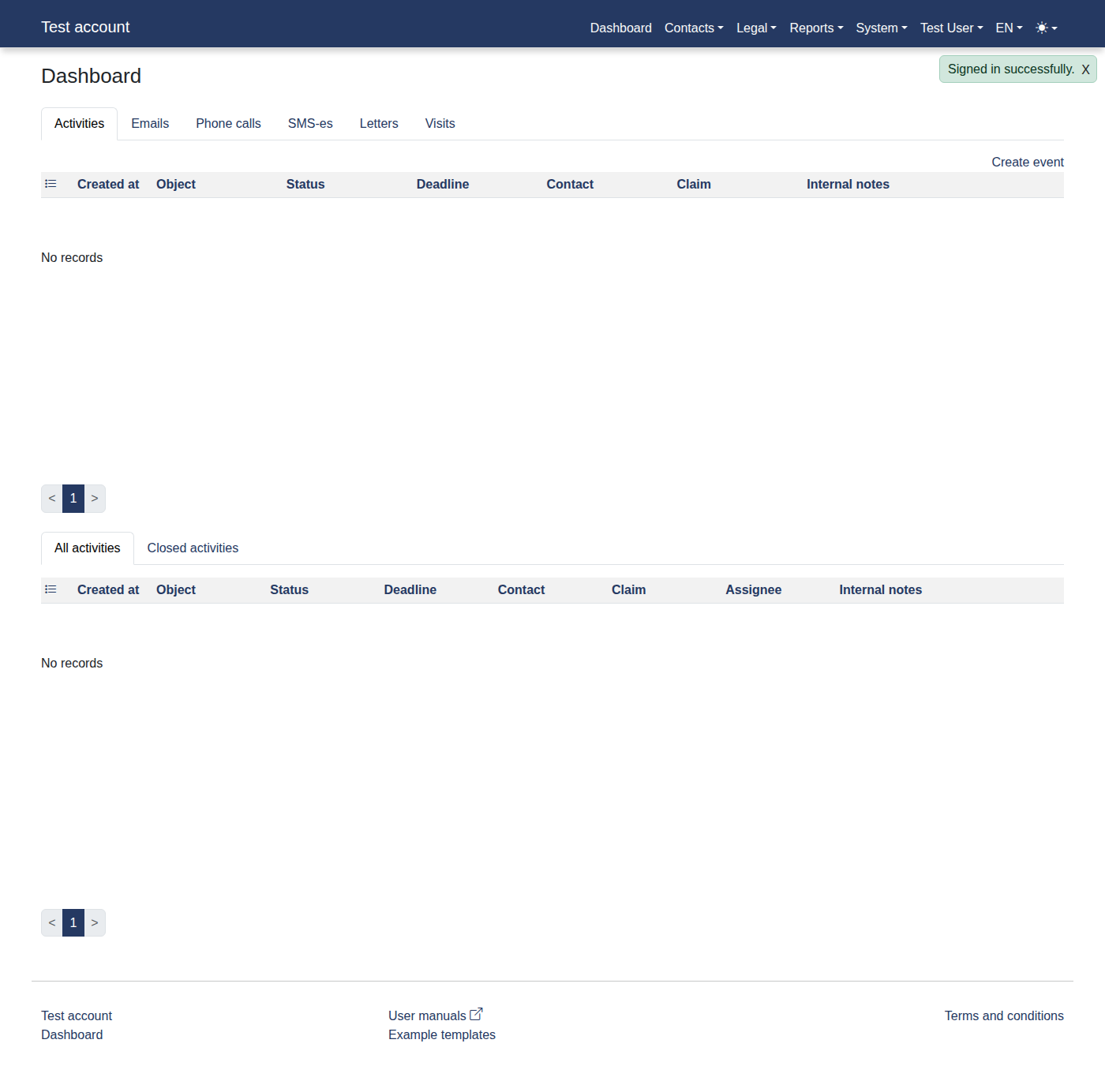
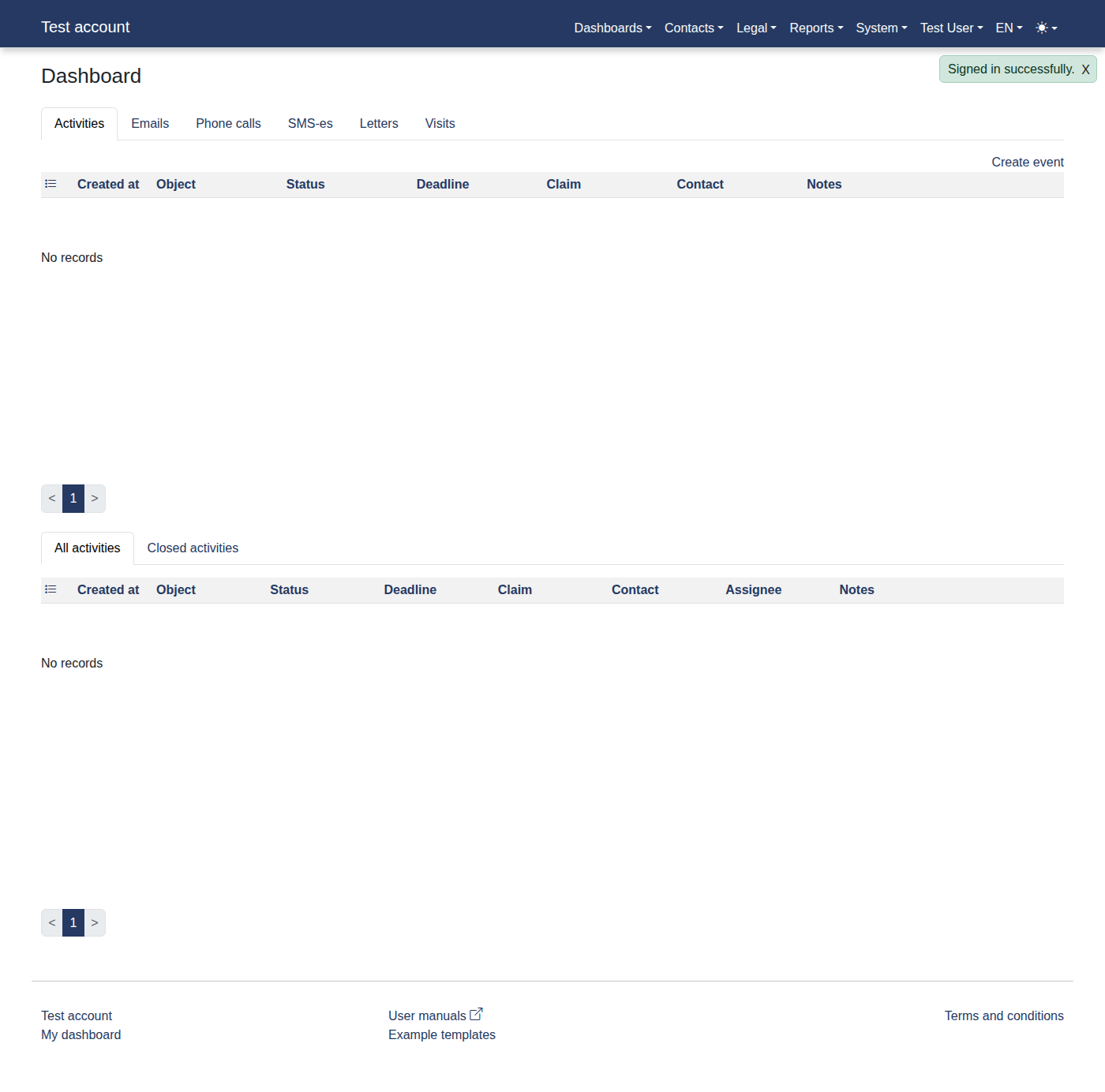
Please log in to the system to access "Dashboard".
-
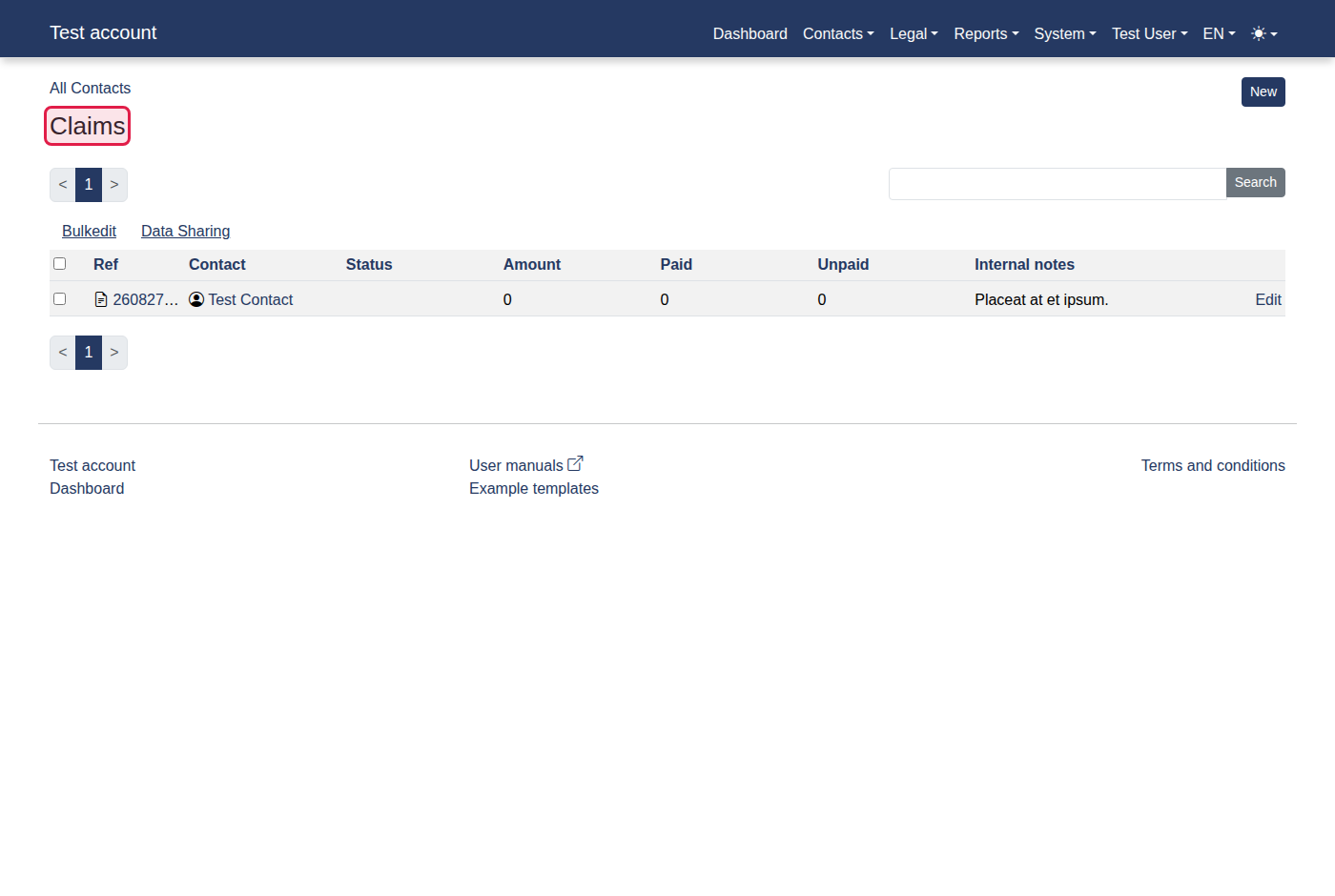
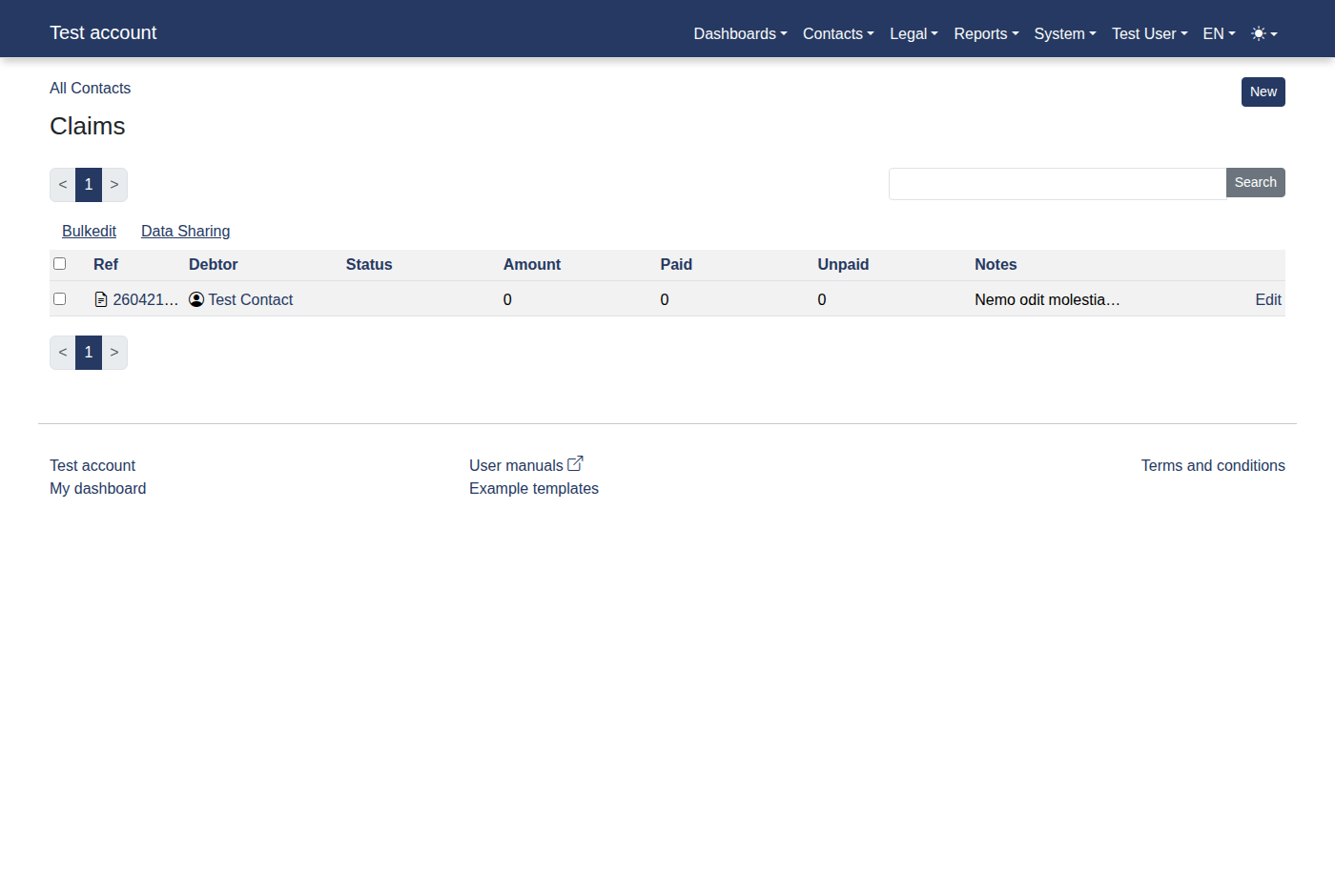
Click menu items: "Contacts -> Claims".
-
You should now see "Claims".
-
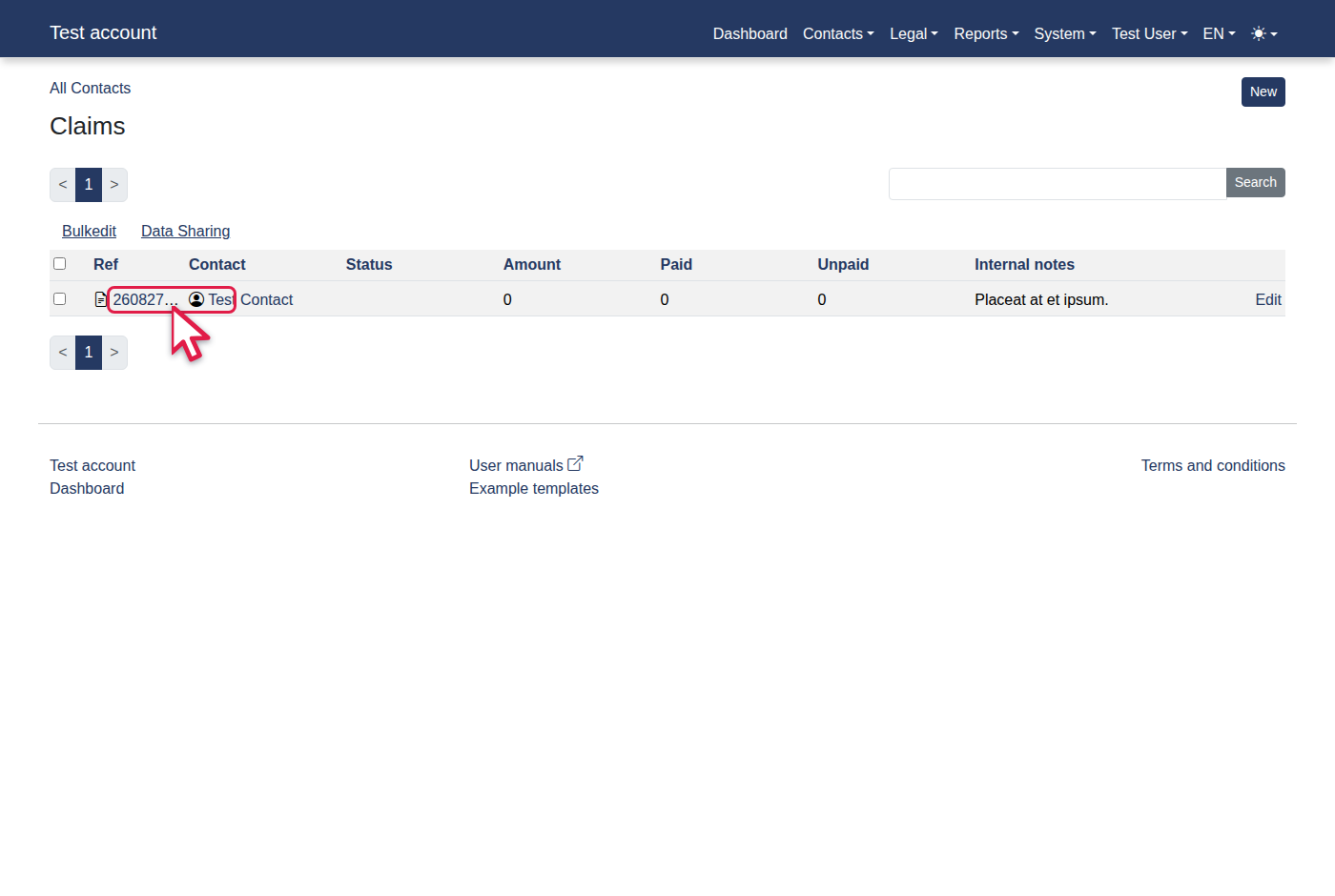
Click the "260827YRMGHB" link.
-
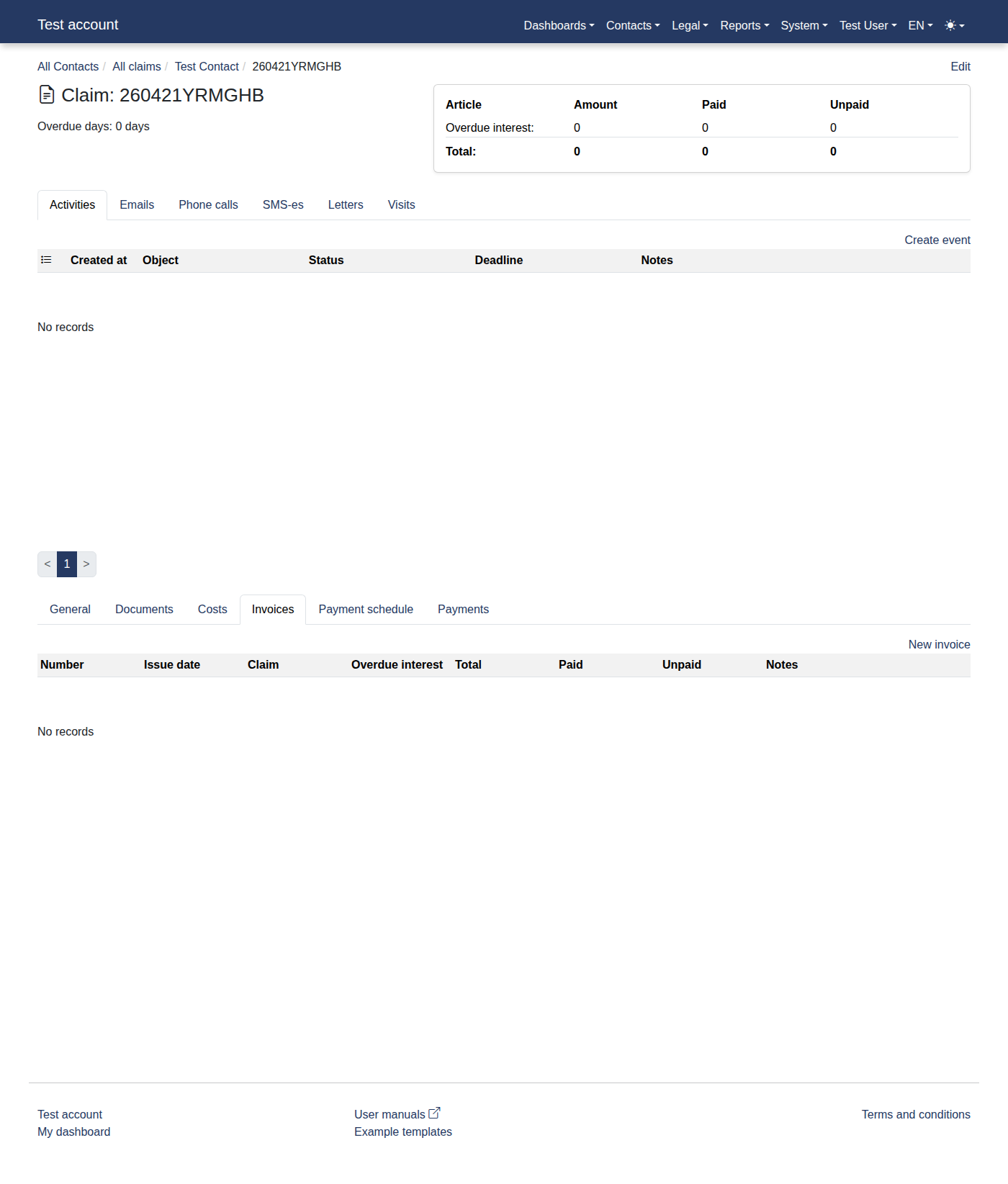
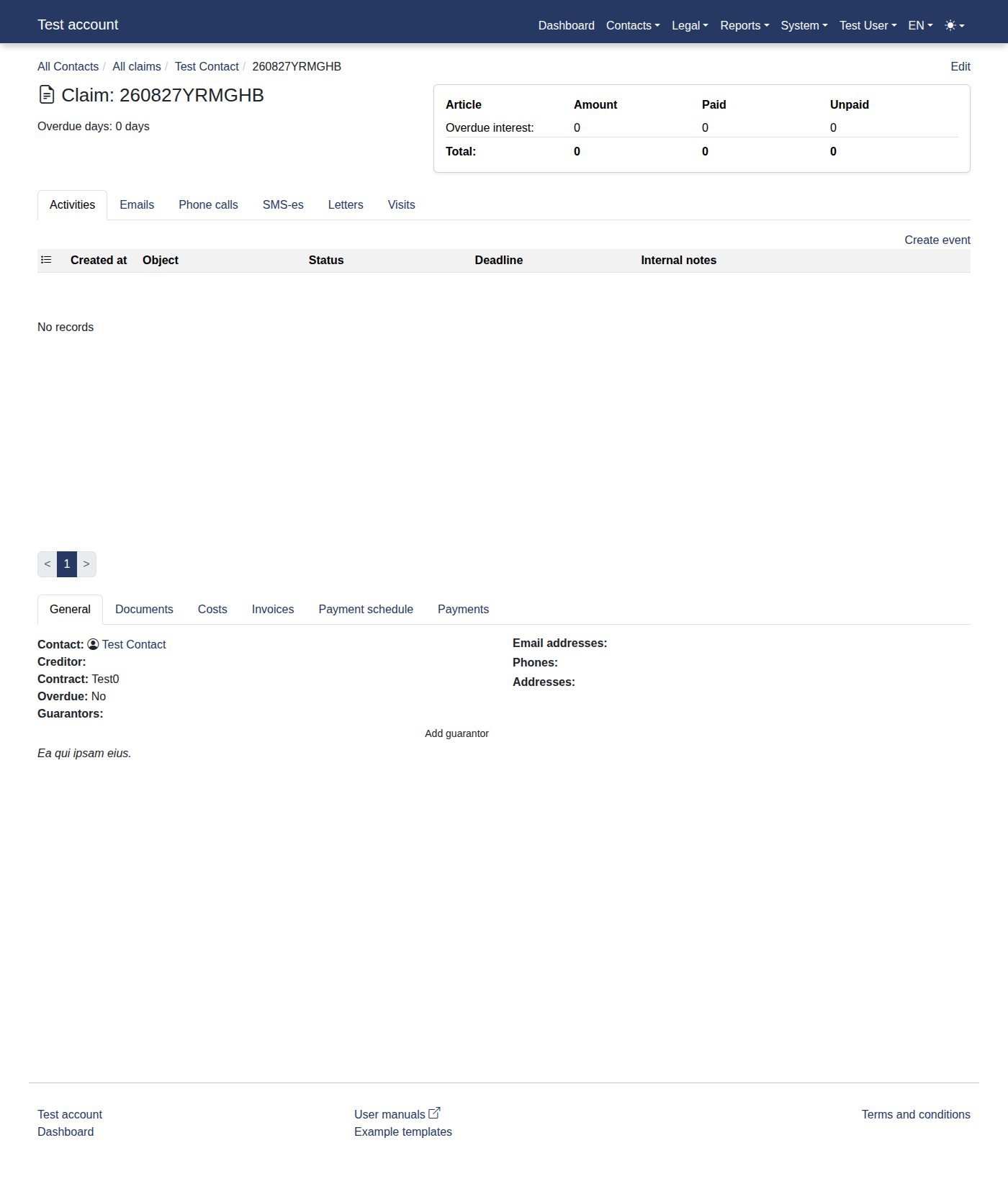
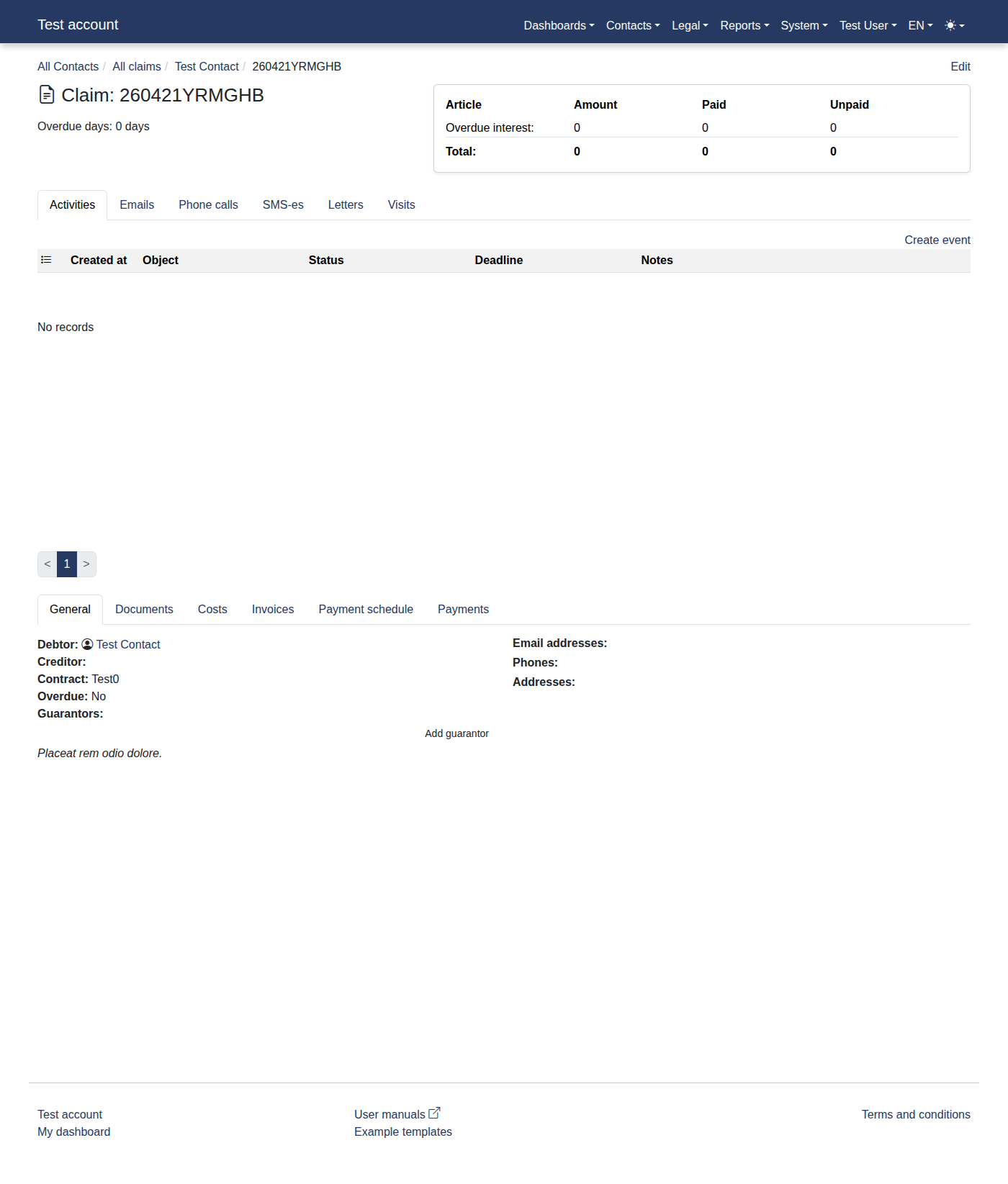
You should now see "Claim: 260827YRMGHB".
-
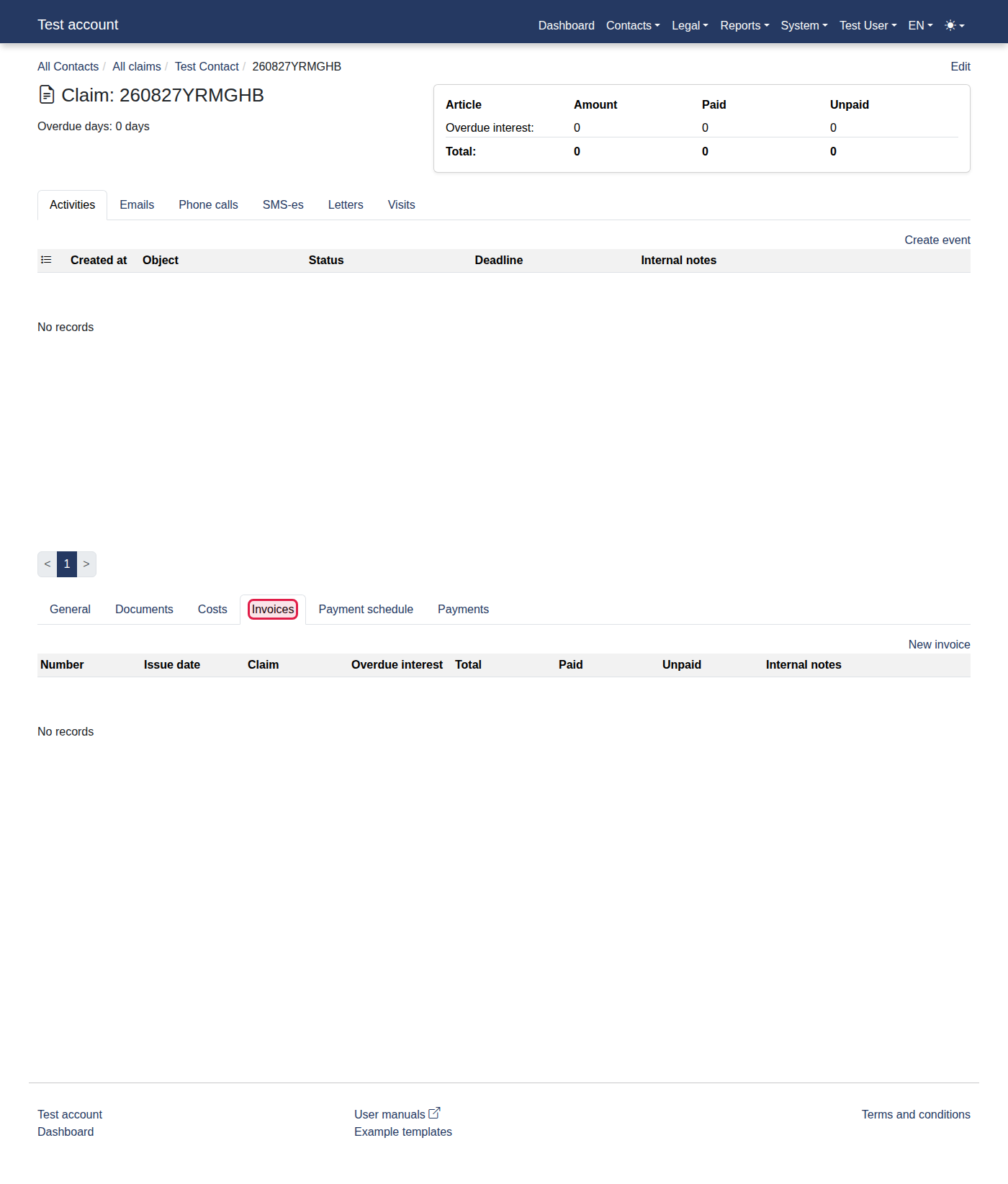
Press the "Invoices" button.
-
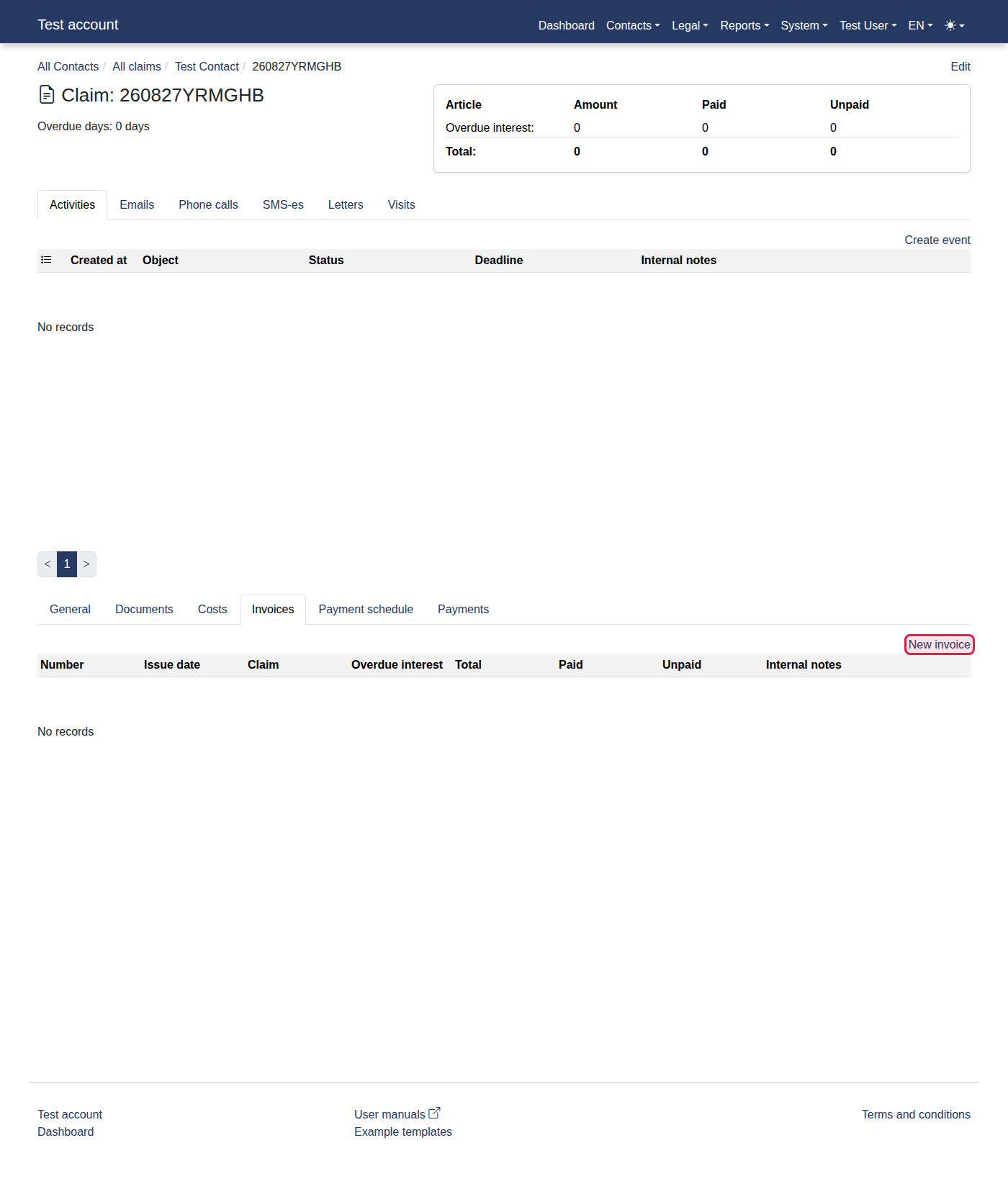
You should now see "Invoices".
-
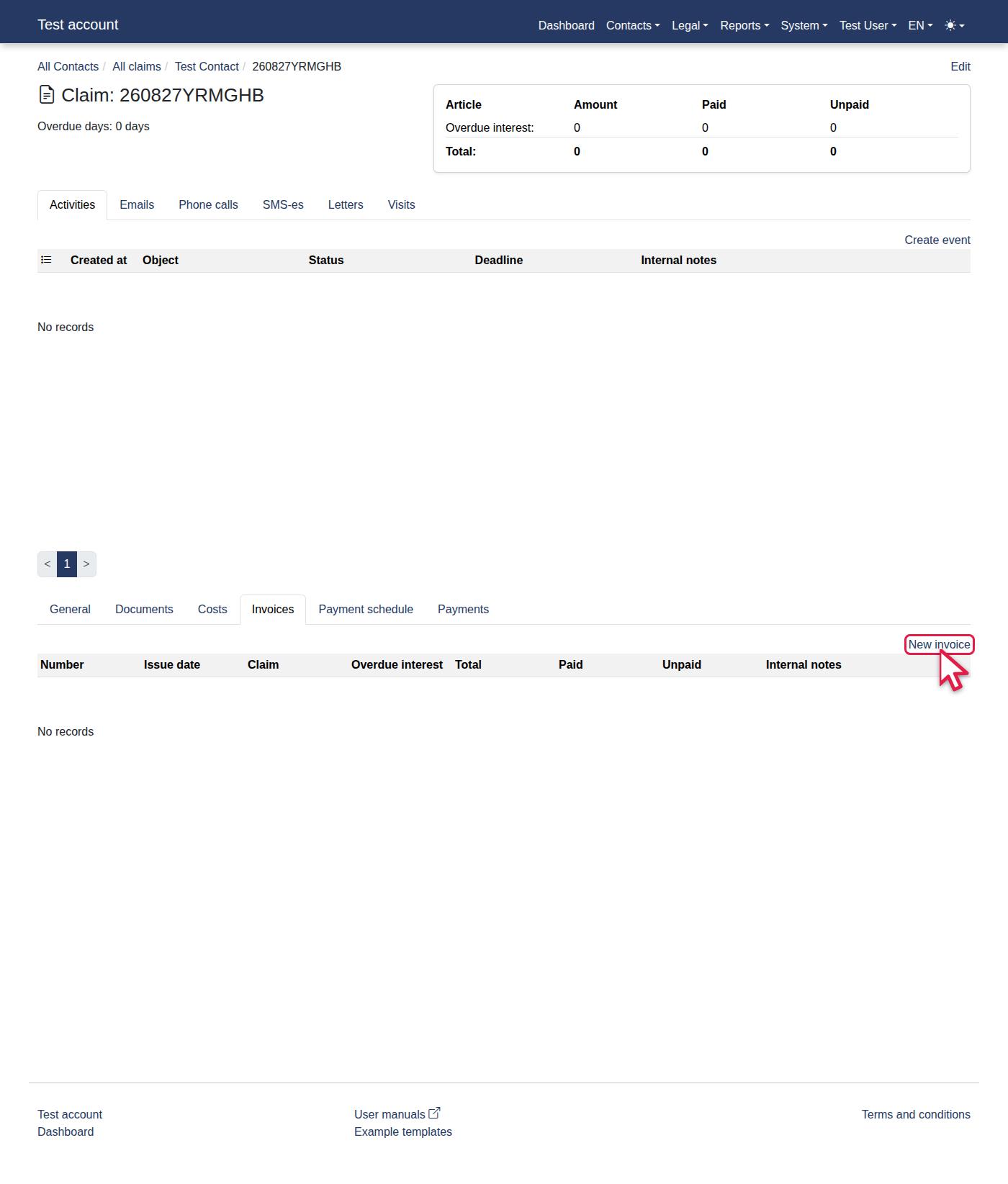
Click the "New invoice" link.
-
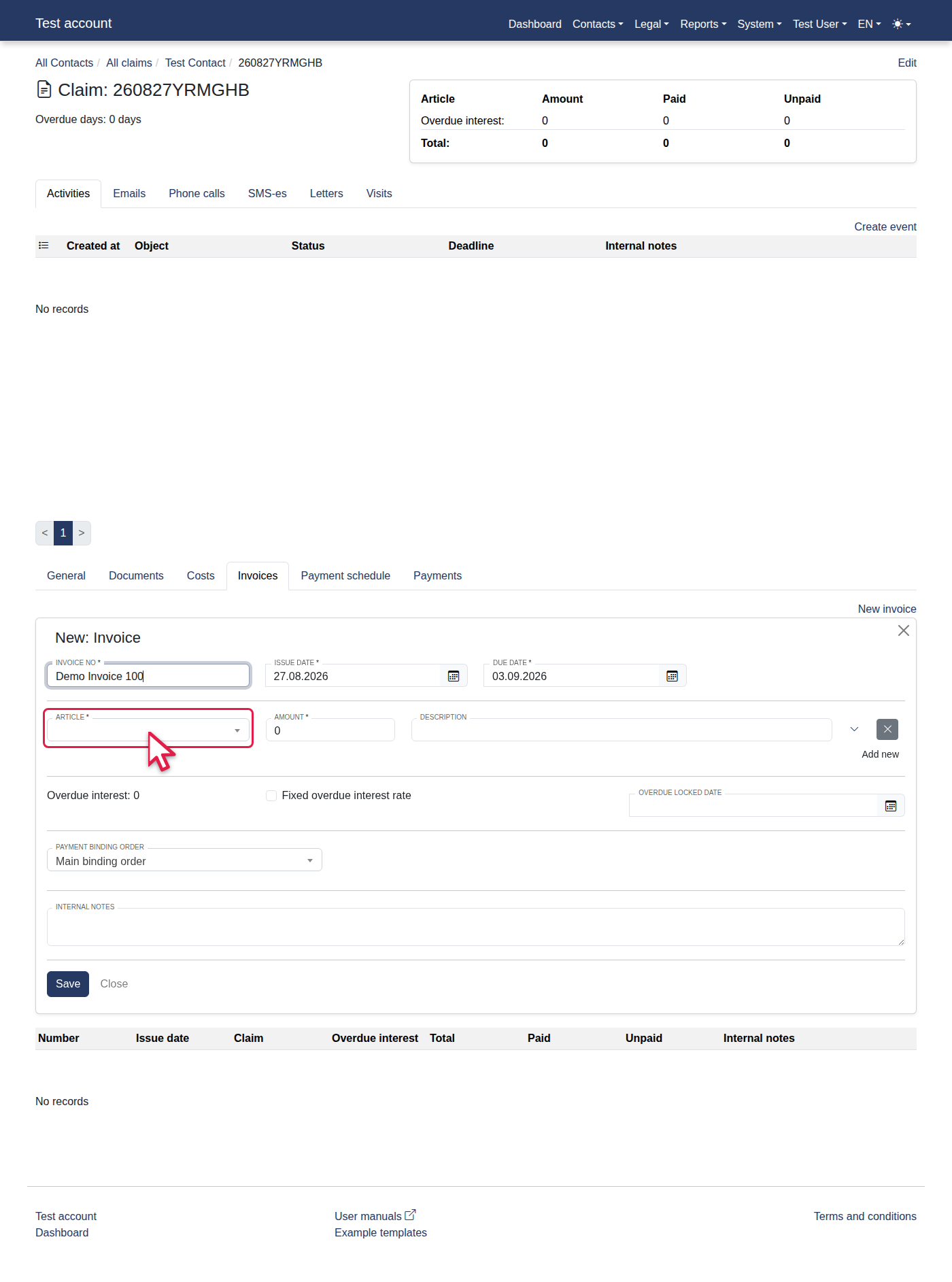
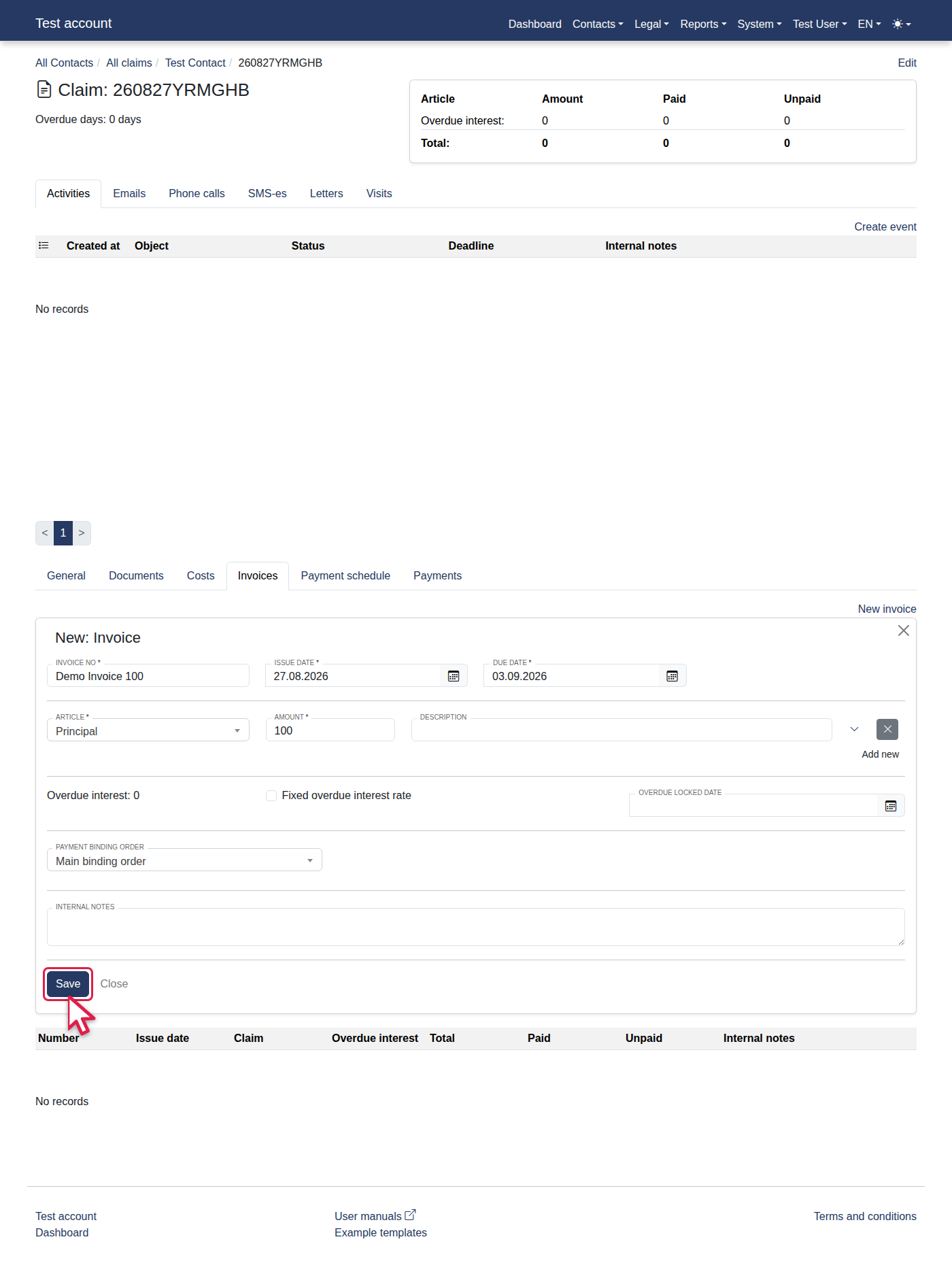
You should now see "New invoice".
-
Fill in Invoice no with "Demo Invoice 100".
-
Select "Principal" from Article.
-
Fill in Amount with "100".
-
Click "Save".
-
You should now see "Demo Invoice 100".